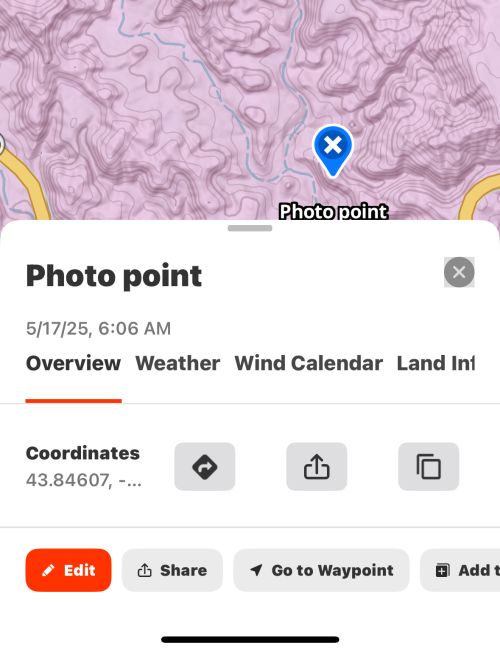
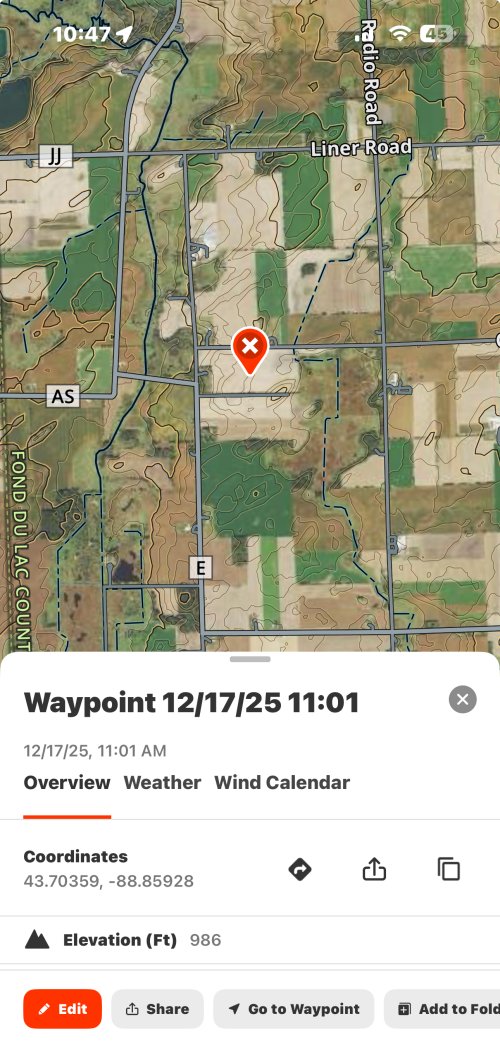
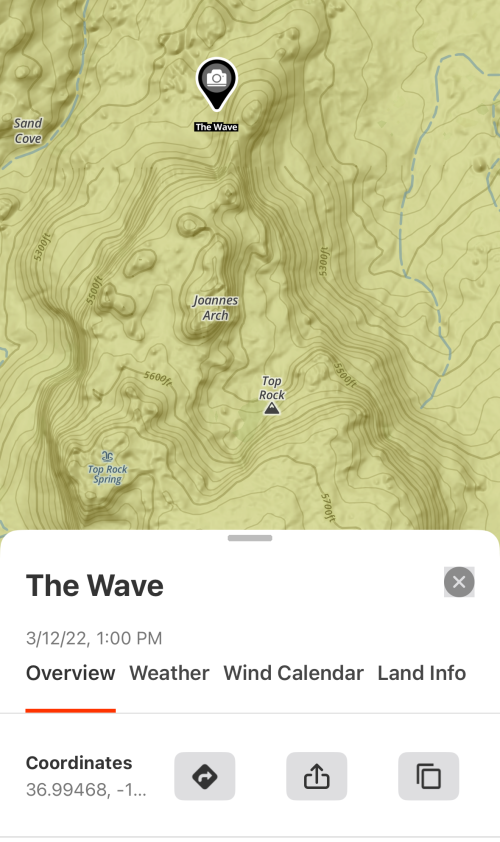
Losing detail with offline maps: this has happened twice to me now on android (in one week). My offline maps lose detail, such as landownership, roads, topography and border lines. For example, the blm lands are "squiglish" splotches.
Yesterday, out in the middle of nowwhere, happened again. Went to the nearest town, found a wifi hotspot and both updated and synced offline maps. The map quadrant for the area I was in returned to normal, but when I drove out of it this same splotching/lack of detail once again occurred.
Now at home, I once again updated/synced the offline maps. Everything looks ok...I did the same thing earlier in the week and thought everything was fixed until yesterday. Same situation
Cause(s)? Fix(es)?
EDIT: just realized that my offline maps somehow got un-downloaded. How would this of happened?
I went through each map and re-downloaded...everything is fine. What does "sync" and "update all" do? tried both and no fix. Pretty hard to re-download maps out in field with no wifi
Sorry about the trouble there! From your message, it sounds like your offline maps were removed/un-downloaded from your device. There are a couple of ways this can happen:
First, if you get a new device, the maps that you had saved on your previous device do not automatically transfer over. Unlike waypoints and other map markups, offline maps are not synced to the cloud, they are saved directly on your device's storage, so that is why they do not automatically transfer over. The same holds true if you ever remove the onX Hunt app from your device and then redownload it. After redownloading the app, you'll need to download your offline maps again.
Second, you may have removed those maps from your device. In your offline maps menu, if you tap the three dots to the right of an offline map, you'll see the option to "Remove from Device." Users often do this to free up space on their phone.
An easy way to check if your maps are ready to go is to look and see if they have a green check mark next to them. That green check mark indicates the map is downloaded on that device and is ready to go. If the map has a black and white arrow next to it, that means you need to download the map to your device before you're able to use it while offline. We recommend downloading maps when you have a good, strong wifi signal.
"Sync" means that you're syncing your offline maps with any offline maps you may have saved on another device. For example, if you save an offline map on a tablet, those maps won't immediately be shown in the offline map list on your phone. Tapping sync will get those maps to show in the list. From there, you're able to download that map data to your phone.
"Update All" allows you to update all of your downloaded maps with one click instead of clicking on each individual map and downloading the updates that way.