So I have been apart of hunting forums the last 10 years and have always used photobucket to load pics onto threads . Well now photobucket has banned it unless you have a $400 a year "third party" membership . What are you guys using to post pics on here ? Some forums have a attachment icon on the reply or new thread page and can upload pics right off phone to page. I don't see that on here .



Navigation
Install the app
How to install the app on iOS
Follow along with the video below to see how to install our site as a web app on your home screen.
Note: This feature may not be available in some browsers.
More options

You are using an out of date browser. It may not display this or other websites correctly.
You should upgrade or use an alternative browser.
You should upgrade or use an alternative browser.
Posting pics ?
- Thread starter HUNTNNW
- Start date

See below, circled in red.
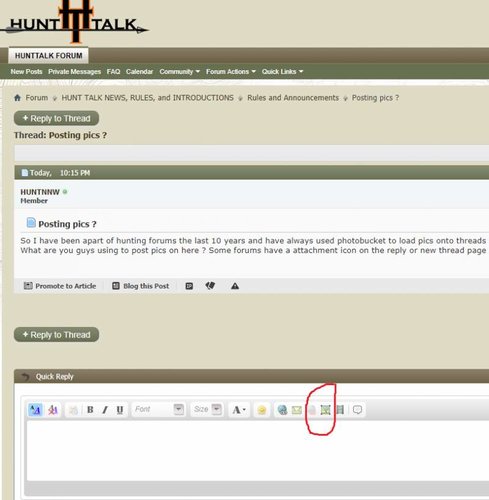
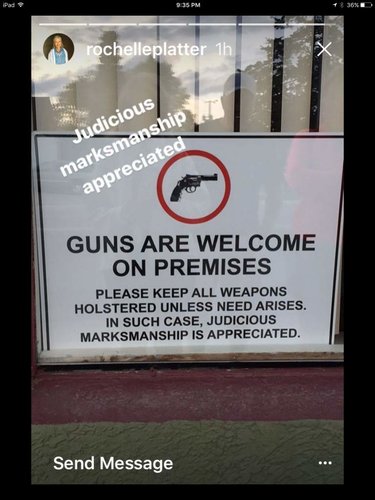
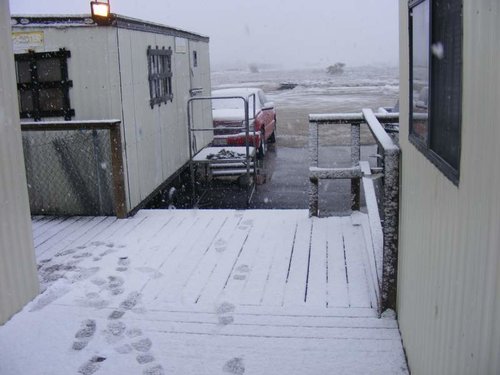
so everything seems to work..clicked on the pic icon.. asks to get pics "from computer" or "from url" the url one seems to work as it has the icon at the bottom once you are done to hit "okay" or "cancel" the one" from computer" pops up asks to "take a photo" or " photo library" I select a photo it loads it on to the screen and there is no "okay" or "cancel" option cant do anything to make it work.





So I have been apart of hunting forums the last 10 years and have always used photobucket to load pics onto threads . Well now photobucket has banned it unless you have a $400 a year "third party" membership . What are you guys using to post pics on here ? Some forums have a attachment icon on the reply or new thread page and can upload pics right off phone to page. I don't see that on here .
I posted a pic from Photobucket on another site a couple of weeks ago. I don't have a "third party membership"; as a matter of fact, I've never paid for anything on PB. When you right click on the pic you want to post and get the dialog box with 4 options, pick the "img" option to copy it. When you "paste" it on the website you're transferring it to, add {img} to the front and back of the PB code line. I think that's how it worked.
In Post #14 that follows, I will provide the step by step of how this pic got posted.


El Jason
Well-known member
I posted a pic from Photobucket on another site a couple of weeks ago. I don't have a "third party membership"; as a matter of fact, I've never paid for anything on PB. When you right click on the pic you want to post and get the dialog box with 4 options, pick the "img" option to copy it. When you "paste" it on the website you're transferring it to, add {img} to the front and back of the PB code line. I think that's how it worked.
Your nasty gram from Photobucket will be coming soon if you've ever posted the link to PB.. My photos are still visible, but I got the ransom note a few weeks ago.
Step 1 - Click on this icon and it will say "Insert Image"
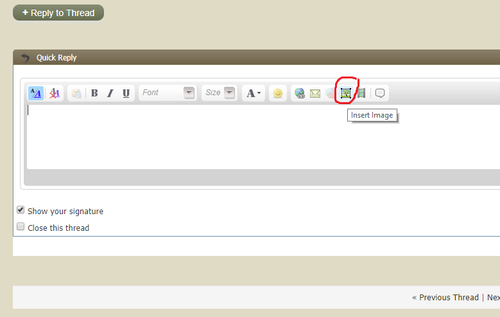
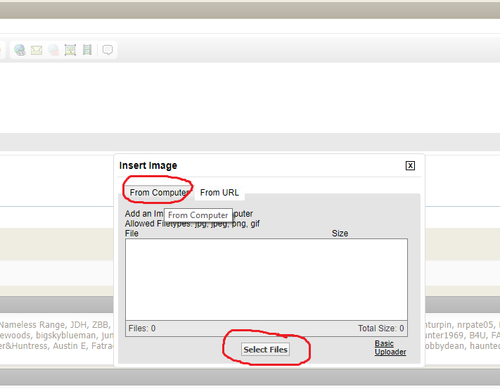
Step 2 - What it looks like when you click on the icon. Select the left tab that says "From Computer." Then hit the button at the bottom of the box to "Select Files.
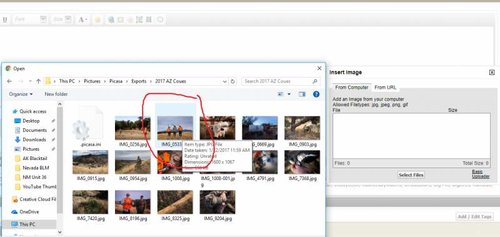
Step 3 - It will then ask you where the file is located on your computer. When you highlight the image file, it will look like this.
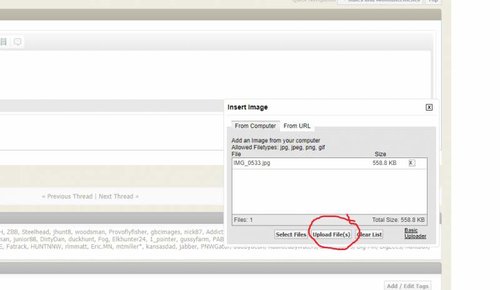
Step 4 - Double click the image file on your computer and it will show up in the upload box as being ready to upload. Hit the "Upload Files" button and it will start the upload process.
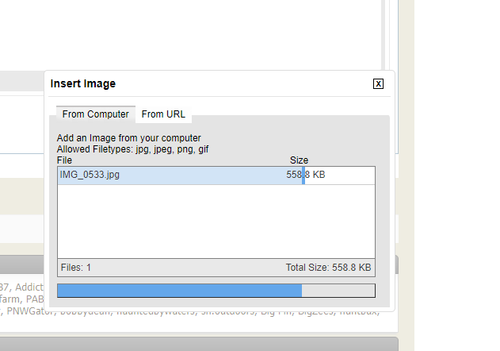
Step 5 - While uploading, it will look like this.
Step 6 - When the upload is complete, it will look like this. It will show and "attachment" is now in your post.
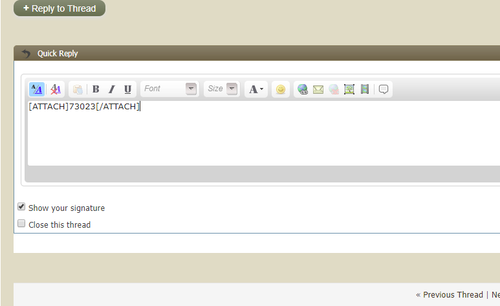
You click "preview post" and it will show you what it will look like in your post.

- Fill in whatever text and story you want to add, either before or after your image, and you are set to finalize your post.
- As with all posts, hit "Submit Reply" and your post, with the photo image, will be just like what you saw in Post #12 below.
Step 2 - What it looks like when you click on the icon. Select the left tab that says "From Computer." Then hit the button at the bottom of the box to "Select Files.
Step 3 - It will then ask you where the file is located on your computer. When you highlight the image file, it will look like this.
Step 4 - Double click the image file on your computer and it will show up in the upload box as being ready to upload. Hit the "Upload Files" button and it will start the upload process.
Step 5 - While uploading, it will look like this.
Step 6 - When the upload is complete, it will look like this. It will show and "attachment" is now in your post.
You click "preview post" and it will show you what it will look like in your post.
- Fill in whatever text and story you want to add, either before or after your image, and you are set to finalize your post.
- As with all posts, hit "Submit Reply" and your post, with the photo image, will be just like what you saw in Post #12 below.
El Jason
Well-known member
Since I started using my Iphone for photos, the sideways image has vexed me. Now, no one has EVER accused me of being on the front end of the bell curve when it comes to technological intelligence, so this isn't likely cutting edge stuff for anyone. However, the fix was a easy as downloading a different camera app. Turns out the IPhone camera only has one orientation it recognizes.
One of the photos was taken in portrait and one was taken in landscape. Amazingly enough, both showed up in the correct orientation. Both were inserted via the method Big Fin just outlined. Now I can just use Flickr to store images and not worry about third party hosting issues.
Test
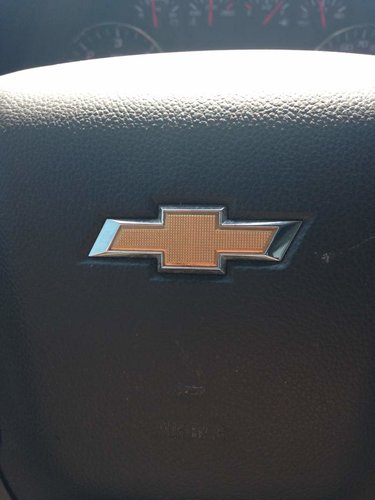
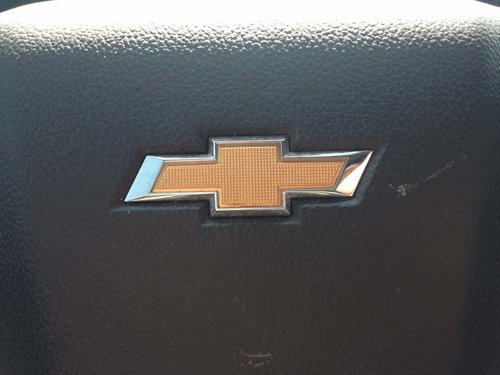
One of the photos was taken in portrait and one was taken in landscape. Amazingly enough, both showed up in the correct orientation. Both were inserted via the method Big Fin just outlined. Now I can just use Flickr to store images and not worry about third party hosting issues.
Test
Last edited by a moderator:
so step #2 the "select files" icon is not showing on my iphone everything else looks the same. I noticed the steps are from a computer and not a smart phone is why I am having issues. I did get it to work for some pics. It took quite awhile to work.
Last edited:
its coming.. all my pics I have posted on here are no longer available. you click on the unavailable pic and it will take you to photobucket and describe 3rd party hosting and you will have to sign up at $399 a year to use that feature againI posted a pic from Photobucket on another site a couple of weeks ago. I don't have a "third party membership"; as a matter of fact, I've never paid for anything on PB. When you right click on the pic you want to post and get the dialog box with 4 options, pick the "img" option to copy it. When you "paste" it on the website you're transferring it to, add {img} to the front and back of the PB code line. I think that's how it worked.
so step #2 the "select files" icon is not showing on my iphone everything else looks the same. I noticed the steps are from a computer and not a smart phone is why I am having issues. I did get it to work for some pics. It took quite awhile to work.
It is identical experience with any device. It is there, somewhere.
HUNTNNW:
On my iPad, the words "choose file" are there, and it looks like a clickable button. Once the image has been "chosen", the "upload file/s" just below the "choose file" button is there, but it doesn't show up as a "clickable" button. Clicking on the "Upload file/s" finishes the process. On my iPad, I can only choose one picture at a time. If i attempt to add more than one image on my iPad, it only loads the last one selected. On my computers, any number of attachments (pictures) can be chosen and uploaded.
Hope this helps
On my iPad, the words "choose file" are there, and it looks like a clickable button. Once the image has been "chosen", the "upload file/s" just below the "choose file" button is there, but it doesn't show up as a "clickable" button. Clicking on the "Upload file/s" finishes the process. On my iPad, I can only choose one picture at a time. If i attempt to add more than one image on my iPad, it only loads the last one selected. On my computers, any number of attachments (pictures) can be chosen and uploaded.
Hope this helps
its coming.. all my pics I have posted on here are no longer available. you click on the unavailable pic and it will take you to photobucket and describe 3rd party hosting and you will have to sign up at $399 a year to use that feature again
Your nasty gram from Photobucket will be coming soon if you've ever posted the link to PB.. My photos are still visible, but I got the ransom note a few weeks ago.
Guess I'll have to hide under the bed until the danger has passed. Thanks for the warning!
Similar threads

- Replies
- 29
- Views
- 1K


- Replies
- 28
- Views
- 3K
- Replies
- 21
- Views
- 3K